
Church Adoption Guide
This guide is for teams that want to use Route Bible without writing code.
For a deeper walkthrough of /builder features and embed options, see QR Builder Guide. For a dedicated website badge setup guide (including how badge.js works), see Website Badge Guide.
Fastest path (10-15 minutes)
- Open
https://route.bible/builder. - Paste a passage (for example
John 3:16-18orJHN.3.16-18). - Confirm the generated canonical link.
- Download PNG or SVG QR.
- Add the link and QR to slides, bulletin, and livestream overlay.
If your team needs many references at once, use https://route.bible/verse-pack.
Walkthrough screenshots
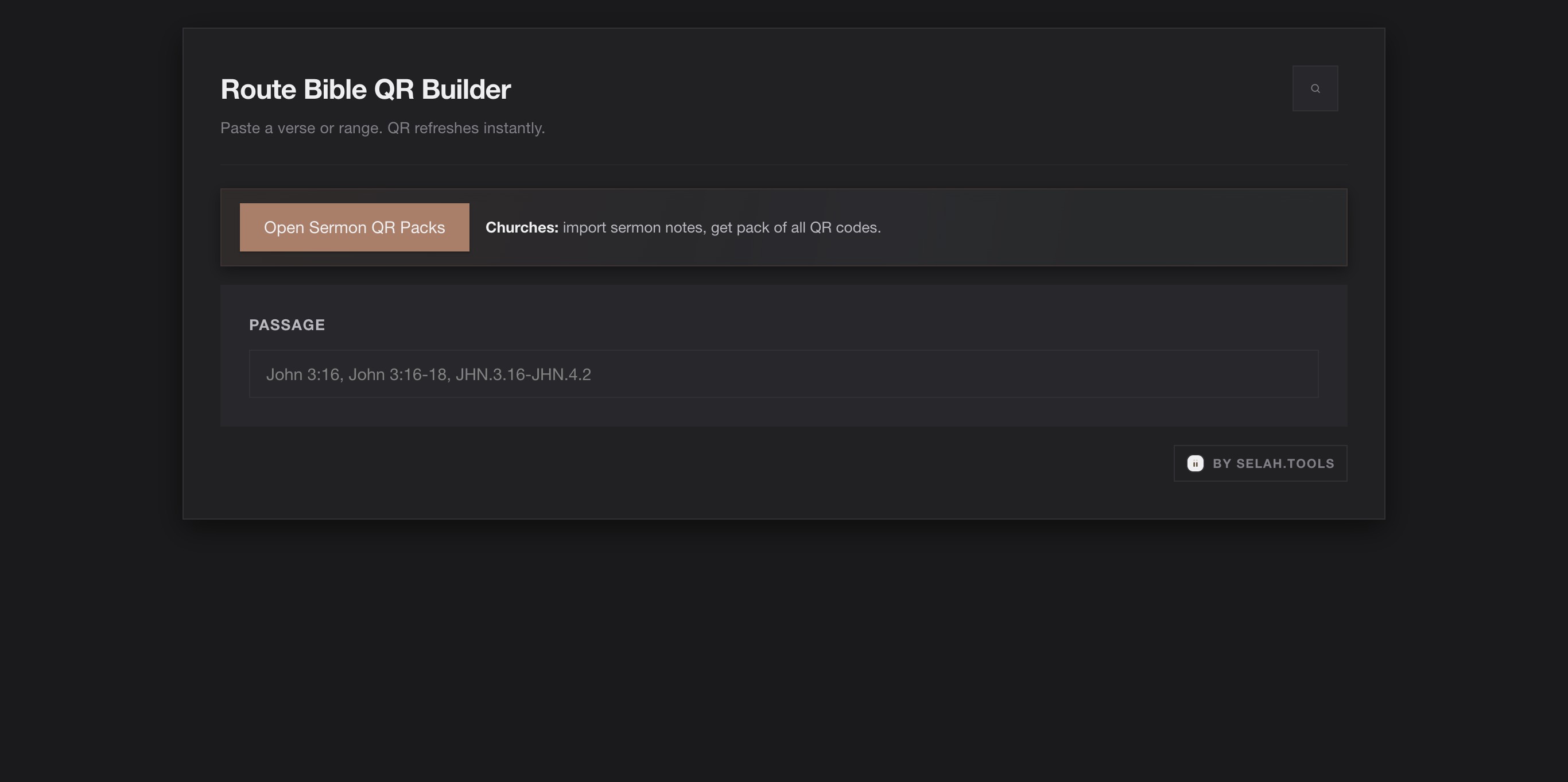
- Open Builder and confirm you are on the Route Bible QR Builder screen.
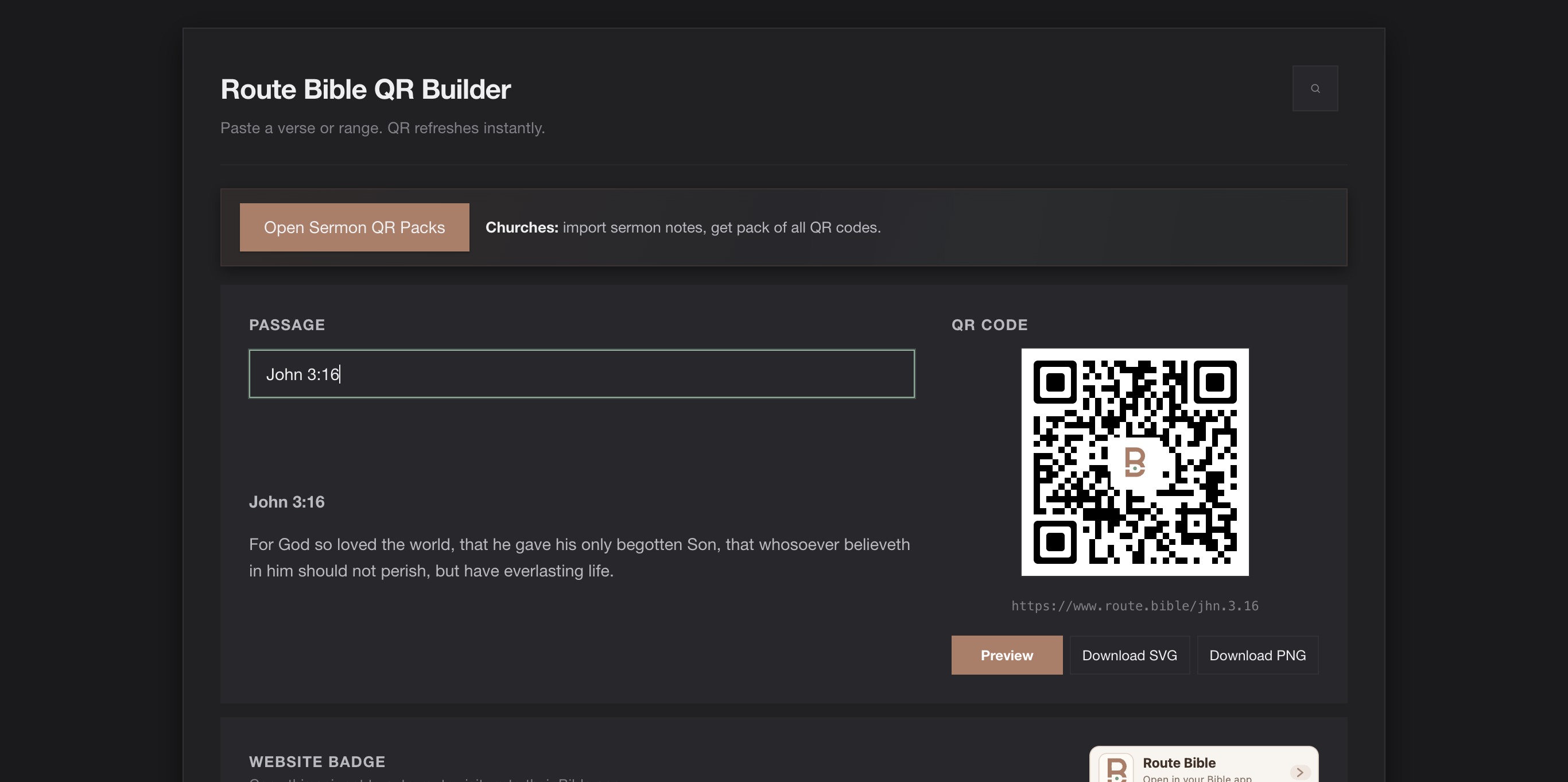
- Enter a passage and confirm Route Bible generates the canonical link and QR outputs.
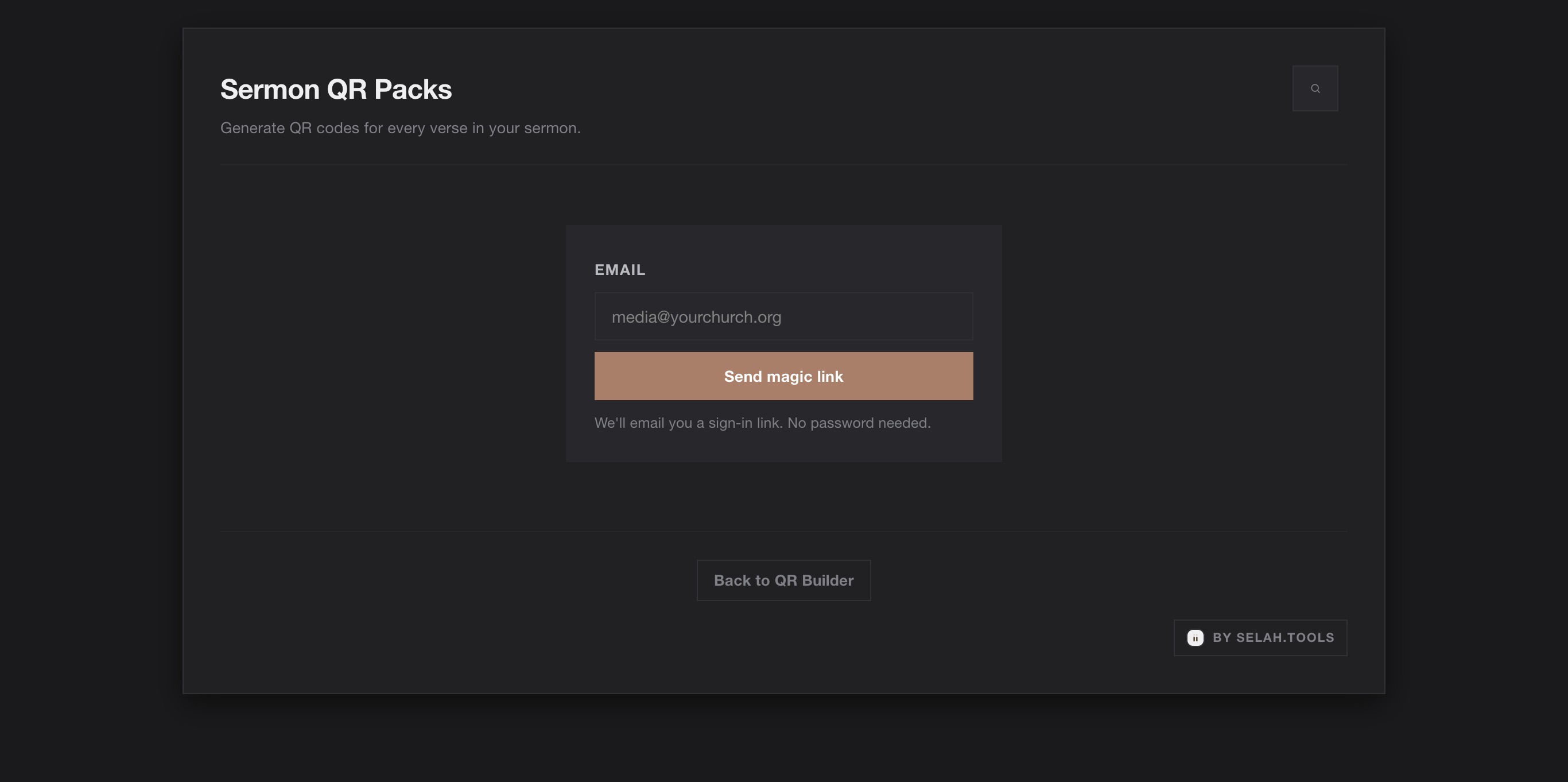
- For batch sermon workflows, open Sermon QR Packs and sign in with your team email.
What to put where
- Slides: use PNG or SVG QR + short caption (
Scan for John 3:16). - Printed handouts/bulletins: use SVG for sharper print quality.
- Livestream and social posts: include the canonical link text directly.
Service-day checklist
- Test each QR on one iPhone and one Android phone.
- Confirm church Wi-Fi allows outbound HTTPS.
- Keep one QR per slide to reduce scan conflicts.
- Keep the QR visible long enough for slower camera lock.
Sermon QR packs
Use https://route.bible/verse-pack when you need batch output.
- Sign in by email magic link.
- Paste sermon notes or upload notes/images.
- Detect references.
- Download ZIP.
- Use
manifest.csvand generated QR files in your media workflow.
Optional website badge (copy/paste)
Paste into your church site where you want a Route Bible badge:
html
<div id="route-bible-badge"></div>
<script async src="https://route.bible/badge.js" data-mount="#route-bible-badge"></script>
For a fixed passage badge:
html
<div id="route-bible-badge"></div>
<script
  async
  src="https://route.bible/badge.js"
  data-mount="#route-bible-badge"
  data-passage="JHN.3.16"
></script>
For full behavior details and all snippet options, use Website Badge Guide.
Troubleshooting
- Link opens launcher, not your preferred app: add
?app=<adapter-id>when available or choose in launcher. - QR scans but nothing opens: verify camera app has network access; test direct URL in browser.
- "Magic link rate limited" in verse-pack: wait for window reset or use custom SMTP if you run your own deployment.